
After you have added a new family and family members, you can edit the patient information.
Important: If you have set up Request to Pay, you can send payment requests via text messages. However, before sending billing-related text messages, the Telephone Consumer Protection Act (TCPA) requires that the patient provides prior consent. Once consent is granted, it must be recorded in Dentrix. This consent is saved at the family level and also applies to QuickBill Text messages. Please refer to step 3.
To edit patient information
1. With a patient selected in the Family File, double-click the Patient Information card.
The Patient Information dialog box appears.
Note: For new patients, mandatory and any other information you entered in the Add a New Patient dialog box appears.
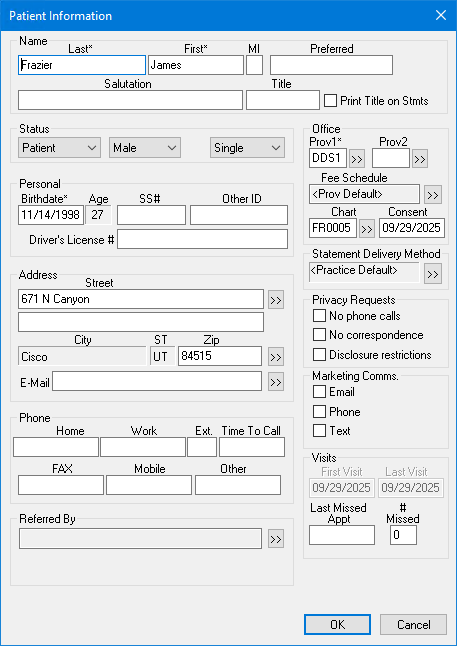
2. Make any needed changes.
Notes:
An asterisk indicates mandatory information.
For new patients, any information you entered in the Add a New Patient dialog box appears.
If a family member has a different address, change the address in that family member’s patient information. When an address that you saved for more than one family member changes, the Address Changed dialog box appears when you click OK.
If you click the Address search button, the Select from Family Addresses list box appears. This lists every address that you entered for a member of the family. Select the appropriate address from this list for each family member.
To avoid the possibility of a claim being rejected, type the patient's ZIP + 4 ZIP Code. You do not need to type the hyphen, since Dentrix inserts it automatically.
3. To send payment requests via text message, under Statement Delivery Method, click the double-chevron icon.
The Default Delivery Method dialog box appears.
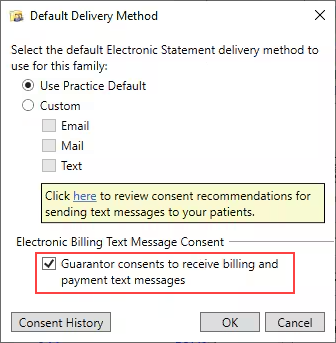
4. Select Guarantor consents to receive billing and payment text messages, and then click OK.
5. Click OK again to close the Patient Information dialog box.